Private Pages and Viewer Access
Some StatiBeat pages are public to everyone. Others are restricted so only approved viewers can see service information.
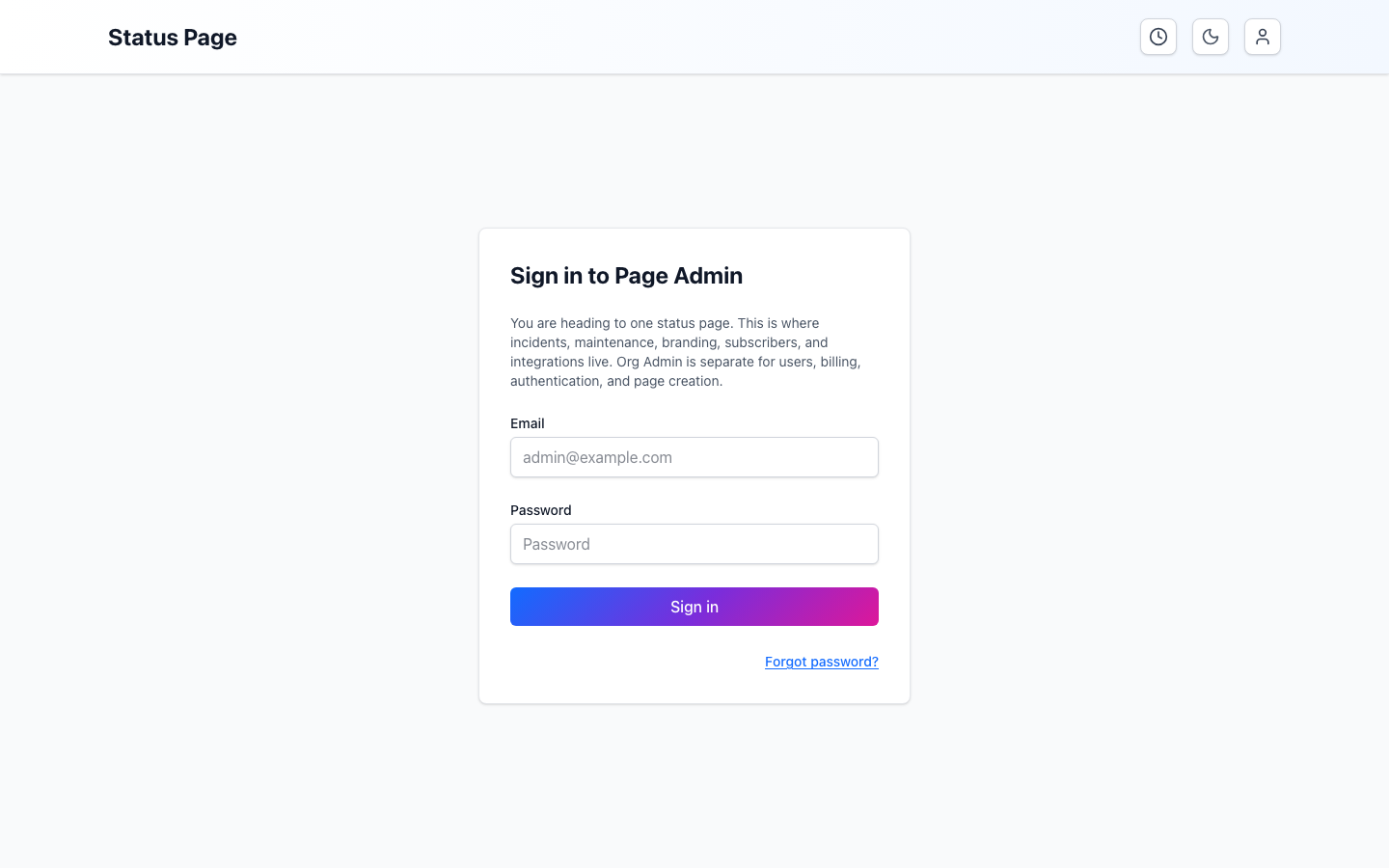
Why a page might be private
Teams use private pages when they need to share status information only with:
- internal teams
- enterprise customers
- selected partners
- viewers behind a company identity provider
Common access modes
Private StatiBeat pages can be configured with one of these viewer-access patterns:
- shared password
- viewer SSO
- shared password or viewer SSO
Shared password
Use this when the audience is small and the simplest possible gate is enough.
You will usually:
- open the page
- enter the shared password
- continue into the status page
Viewer SSO
Use this when the audience should authenticate with an identity provider.
SSO means single sign-on. Select the page's sign-in option and complete the same organization login you use for other approved services; StatiBeat does not replace your organization's identity provider.
This is common when:
- the page is customer-specific
- the page is internal-only
- access should be tied to your organization’s sign-in system
Shared password or viewer SSO
This hybrid mode is useful when one audience uses SSO but another still needs a shared-password fallback.
What private access changes
Private access changes who can view the page, but not the core reading experience once you are signed in.
After successful access, you can still expect:
- current status and live activity
- hierarchy browsing
- incident and maintenance details
- subscription and management flows when enabled
Practical tips
- Use the fallback URL or custom domain you were given; both may work depending on how the page is configured.
- If viewer SSO fails, check whether you are supposed to use the shared-password path instead.
- If a page stays private after you authenticate, confirm you were given the correct page link and not a different custom view or environment.
If you are unsure which access mode applies, ask the page owner for one of these three things: the shared password, the correct organization sign-in link, or a new page link. Avoid guessing passwords or repeatedly retrying the wrong organization account.